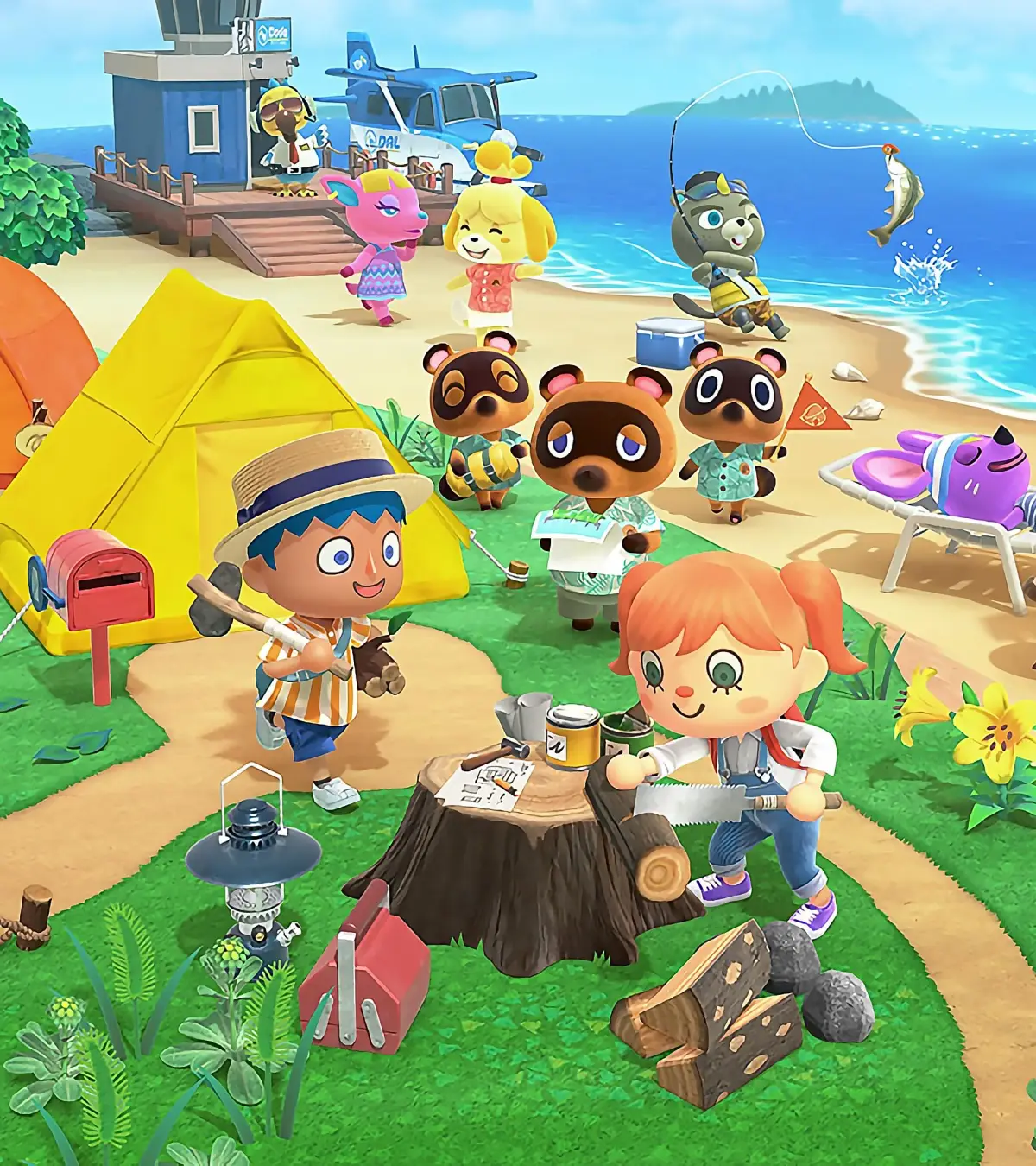
Learn how to take amazing portfolio photos in Animal Crossing: New Horizons! We'll guide you through placing villagers, dressing them up, and using the camera tools for the perfect shot.
Hey there! So you're looking to snap some fantastic portfolio photos in Animal Crossing: New Horizons, huh? It's a super fun part of the Happy Home Paradise DLC, and I'm here to walk you through it. Think of it like staging a little photoshoot for your clients!
First things first: Setting the Scene
Before you even think about the camera, you'll want to get your client looking their best and put them in a spot that really shows off their personality and the home you've designed. To do this, you'll need to hop into decorating mode. Once you're in, just pick up your client – yeah, like you're picking up furniture! – and place them wherever you think they'll look best. Maybe they're lounging on the sofa, snoozing in bed, or just striking a cool pose in the middle of the room. Get creative!
Dressing Up Your Clients
Now, about their outfits. You can totally change what your clients are wearing to match the vibe of their vacation home. After you've placed them, just hover over your client and press the X button. A selection of clothing will pop up, and it's all based on their theme. For example, if their theme is 'An Orange Space,' you'll find a bunch of orange-y or space-themed outfits. It's totally optional, but trust me, it makes the photos look so much more cohesive and professional when their outfit totally nails the aesthetic of the house.
Don't forget accessories! Depending on the client, you might also get options for things like glasses, hats, or even moustaches. It's the little details that make the photos pop!
Mastering the Camera Controls
Alright, you've got your client styled and perfectly positioned. Now it's time to open up that camera and get ready to capture the magic! Here's a quick rundown of the controls you'll be using:
- Making Yourself Disappear: If you don't want your character in the shot, just press in the left analog stick. Want the client gone too? Press it again! This is great if you just want to showcase the amazing home you've decorated.
- Zooming: Use the X button to zoom in and get closer to the action, and the Y button to zoom out and get a wider view.
- Getting Their Attention: Want your client to look right at the camera? Press the R bumper. They'll look up, ready for their close-up!
- Filters and Frames: Feeling artistic? Press the ZL button to cycle through different filters to set the mood. And if you want to add a little extra flair, the L bumper will let you add various frames to your picture.
- Fine-Tuning the Shot: Need to adjust the camera angle slightly? Use the D-pad on your controller to move the camera lens up, down, left, or right. It's all about getting that perfect composition.
Capturing the Moment
Once you're happy with how everything looks – the client's pose, the lighting, the angle – hit the + button to take the photo. This snaps a screenshot and automatically saves it to your portfolio. Easy peasy!
Wrapping Up the Shoot
After you've captured your masterpiece, all you need to do is talk to your client again and let them know you're ready to head out. Just a heads-up: if you placed your client in a tricky spot, like tucked behind furniture or deep in a bed, you might need to go back into decorating mode and move them back onto the floor before you can chat with them to leave. So, plan your placements wisely!
That's it! With a little bit of staging and a good understanding of the camera tools, you'll be taking stunning portfolio photos in no time. Happy decorating and snapping!
100% Human-Written. AI Fact-Checked. Community Verified. Learn how AntMag verifies content