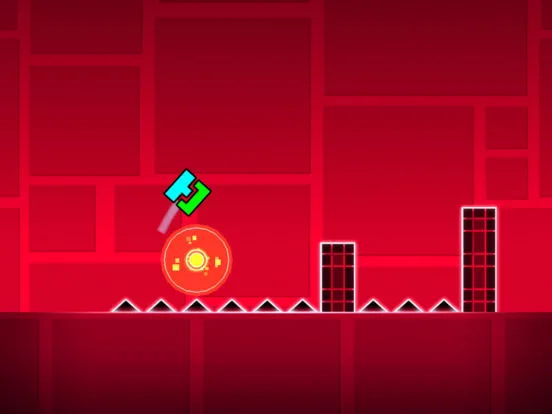
Unlock the full potential of Geometry Dash's Custom Objects and Object Editor. Learn how to create and customize your own levels with this comprehensive guide.
This guide covers the Custom Objects and Object Editor features in Geometry Dash. While the source text focuses on the main levels, this section will detail how to utilize the editor to create unique gameplay experiences.
Walkthrough
- 1Accessing the Editor: Navigate to the 'Create' tab and select 'Editor' to begin building your level.
- 2Object Placement: Browse through various categories of objects, including blocks, spikes, portals, and decorations. Drag and drop them onto the grid to construct your level layout.
- 3Gameplay Mechanics: Utilize jump pads, gravity portals, speed changes, and other interactive objects to create dynamic gameplay.
- 4Customization: Modify object properties such as color, size, and movement to add visual flair and unique challenges.
- 5Testing and Publishing: Playtest your level frequently to identify and fix issues. Once satisfied, you can publish your creation for others to play.
Tips
- Start with simple designs and gradually increase complexity.
- Pay attention to visual cues and player guidance to ensure a fair challenge.
- Experiment with different object combinations to discover new gameplay possibilities.
- Use the 'Play' button often to test your progress.
- Consider the overall flow and rhythm of the level.
100% Human-Written. AI Fact-Checked. Community Verified. Learn how AntMag verifies content