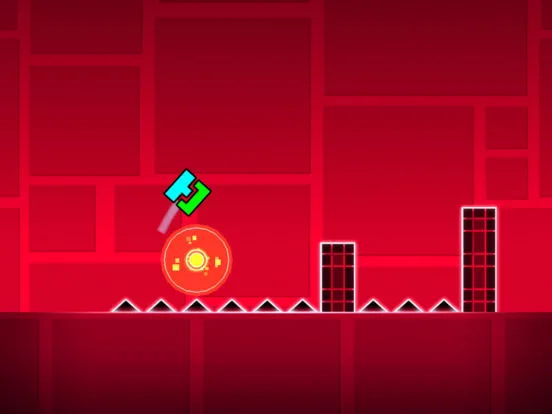
Geometry Dash editor guide: Learn to use Start Positions for level beginnings and Checkpoints for Practice Mode, essential for creators and players alike.
In the Geometry Dash editor, Start Positions and Checkpoints are fundamental elements for defining the beginning of a level and allowing players to practice specific sections. Understanding their function is crucial for both level creators and players aiming to master challenging stages.
The Start Position is the very first object you place in your level. It dictates where You icon will begin their run when the level is played from the start. It's essential for setting the initial orientation and speed of the player. Without a Start Position, a level cannot be played.
Checkpoints, on the other hand, are used primarily in Practice Mode. When a player is in Practice Mode, they can place checkpoints at any point in the level. These checkpoints act as temporary respawn points. If You fails after passing a checkpoint, they will respawn at that checkpoint instead of the beginning of the level. This allows for focused practice on difficult segments.
Using Start Positions in the Editor:
- Placement: The Start Position is typically the first object placed. It's found in the 'Special' tab of the editor.
- Orientation: The arrow on the Start Position indicates the initial direction You will face.
- Speed: The Start Position also sets the initial movement speed of You (e.g., 1x, 2x). This can be changed later with Speed Portals.
- Game Mode: The Start Position also determines the initial game mode (Cube, Ship, etc.). This can also be changed with Game Mode Portals.
Using Checkpoints for Practice:
- Practice Mode: To use checkpoints, you must be in Practice Mode. This is selected from the main menu before starting a level.
- Placing Checkpoints: While playing in Practice Mode, you can tap the 'Checkpoint' button (often a flag icon) to place a checkpoint at your current location.
- Respawning: If you fail after passing a checkpoint, you will respawn at the last placed checkpoint.
- Limitations: Checkpoints are only active in Practice Mode. They do not function in normal play.
Creator's Perspective:
- Defining the Start: Creators use the Start Position to establish the initial challenge and flow of their level.
- Testing and Debugging: Creators use checkpoints extensively during the building process to test specific sections without replaying the entire level.
- Player Experience: By designing levels with clear starting points and considering how players will use Practice Mode, creators can make their levels more accessible and enjoyable.
Important Considerations:
- One Start Position Per Level: A level can only have one Start Position.
- Checkpoint Limits: While you can place many checkpoints in Practice Mode, they are reset each time you play the level in normal mode.
- Visual Cues: Creators often use visual elements around the Start Position and potential checkpoint areas to guide players.
Start Positions and Checkpoints are essential tools that bridge the gap between level creation and player experience. They ensure that levels have a defined beginning and that players have the means to practice and master even the most difficult challenges.
100% Human-Written. AI Fact-Checked. Community Verified. Learn how AntMag verifies content