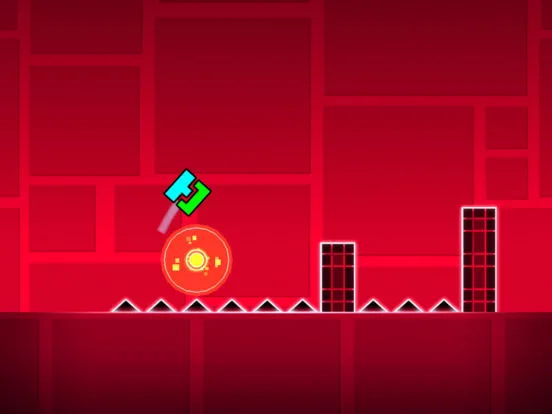
Learn how to customize your icon's colors in Geometry Dash! This guide covers primary, secondary, and glow colors, and how to unlock them through achievements and in-game rewards.
Alright, let's talk about making your icon look awesome in Geometry Dash! You've probably noticed that your cube, ship, or whatever else you're using can change colors, right? This is all part of the 'Customisation' feature, and it's super easy to get the hang of. Think of it like giving your icon its own unique style. ### The Colour Picker When you're in the customization menu, you'll see a dedicated color selection popup. This is where all the magic happens. You can change your icon's primary and secondary colors here. It's pretty straightforward – just pick the colors you like! ### Unlocking Colors Now, you might be wondering how to get more color options. Most of them are unlocked by completing various tasks and achievements. For example, beating levels like Stereo Madness or Back On Track will often reward you with new colors. Keep an eye out for achievements that ask you to collect stars, beat levels with specific difficulties (like Demon levels!), or even complete user-created levels. The more you play and achieve, the more colors you'll unlock! ### Glow Colors Some icons also have a 'glow' option. This adds an extra bit of flair, making parts of your icon emit a glow. Like the other colors, these are typically unlocked through achievements and by progressing through the game. So, keep playing, keep completing those challenges, and you'll be rocking a custom-colored, glowing icon in no time!100% Human-Written. AI Fact-Checked. Community Verified. Learn how AntMag verifies content