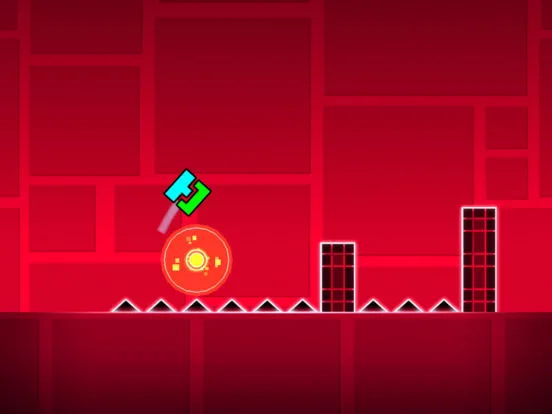
Master Geometry Dash triggers. Learn Movement, Alpha, Pulse, Color, Spawn, Toggle, and Follow triggers to create dynamic and interactive levels.
Unlock the full potential of the Geometry Dash editor by mastering triggers. This guide explains how to use Movement, Alpha, Pulse, Color, Spawn, Toggle, and Follow triggers to create dynamic and interactive levels.
Triggers are the backbone of advanced level des in Geometry Dash. They allow creators to add dynamic elements, animations, and interactive features that go far beyond simple platforming. Understanding and effectively utilizing triggers is what separates a basic level from an extraordinary one. This guide will cover some of the most essential and versatile triggers available in the editor.
Movement Trigger
The Movement trigger is fundamental for animating objects. It allows you to move any object in the level from one point to another over a specified duration.
- Target Group ID: Ass a group ID to the object(s) you want to move.
- X/Y Offset: Define how far the object should move horizontally (X) and vertically (Y).
- Duration: Set the time in seconds for the movement to complete.
- Easing: Choose an animation curve (e.g., 'Ease In Out') for a smoother or more dynamic movement.
- Target Pos: Optionally, you can specify a target X/Y coordinate instead of an offset.
Alpha Trigger
The Alpha trigger controls the transparency (opacity) of objects. This is perfect for fading objects in and out, creating illusions, or revealing hidden elements.
- Target Group ID: The group ID of the object(s) to affect.
- Opacity: Set the desired transparency level (0 = fully transparent, 1 = fully opaque).
- Duration: The time it takes to fade to the specified opacity.
- Fade In/Out: Checkboxes to control whether the trigger specifically fades in or out.
Pulse Trigger
The Pulse trigger causes objects to flash or change color rhythmically. It's often used for visual effects, warnings, or to sync with the music.
- Target Group ID: The group ID of the object(s) to pulse.
- Color: The color the object will pulse to.
- Opacity: The opacity during the pulse.
- Duration: The time for one pulse cycle.
- Times: How many times the pulse should repeat.
- Easing: Animation curve for the pulse.
- Color Change: If checked, the object's color will change to the specified color.
Color Trigger
The Color trigger allows you to change the color of background, ground, or specific objects (if they have a Group ID assigned and are set to 'Edit Group').
- Target Group ID: The group ID of the object(s) or background/ground to color.
- Color: Select the desired color.
- Duration: The time it takes for the color change to complete.
- Black/Gray: Toggles for specific color effects.
Spawn Trigger
The Spawn trigger is used to activate other triggers or objects that are initially 'deactivated' (e.g., hidden or not performing their function). This is essential for creating complex sequences and events.
- Target Group ID: The group ID of the trigger or object to be spawned/activated.
- Delay: A time delay before the spawn occurs.
Toggle Trigger
The Toggle trigger allows you to turn on or off the effects of other triggers or objects. It's often used in conjunction with Spawn triggers for more intricate mechanics.
- Target Group ID: The group ID of the trigger or object to toggle.
- Activate Group: Toggles the target on.
- Deactivate Group: Toggles the target off.
- Spawn Triggered: If checked, the toggle will only activate if the target is a Spawn trigger.
Follow Trigger
The Follow trigger makes one object (or the player's icon) follow another object's movement.
- Target Group ID: The group ID of the object to follow.
- Follow Player: If checked, the target object will follow the player's icon.
- X/Y Mod: Modifies the following behavior (e.g., offset).
- Duration: How long the follow effect lasts.
Other Useful Triggers:
- Move Trigger: Similar to Movement, but often used for simpler, single-axis movements.
- Rotate Trigger: Rotates objects.
- Stop Trigger: Stops the music or other ongoing effects.
- Count Trigger: Used for tracking objectives or creating complex sequences based on counts.
By combining these triggers, you can create levels with moving platforms, disappearing walls, dynamic backgrounds, interactive puzzles, and much more. Experimentation is key to mastering their potential!
100% Human-Written. AI Fact-Checked. Community Verified. Learn how AntMag verifies content