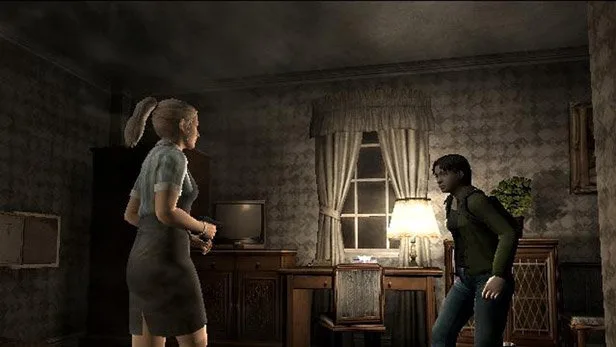
Navigate the OPTIONS menu in Resident Evil Outbreak! Learn to customize CONTROLLER SETTINGS, SOUND SETTINGS, BRIGHTNESS, SCREEN ADJUST, and SAVE/LOAD for the best experience.
Hey there! So, you're diving into Resident Evil Outbreak and want to tweak things to your liking? Smart move! The OPTIONS menu is where you can really dial in your gameplay experience. Let's walk through what's what so you can get set up just right.
Options Menu Breakdown:
When you first hit the OPTIONS menu, you'll see about 6 different selections. We'll go through 'em one by one.
- CONTROLLER SETTINGS: This is where you can change how your controls feel. If you're used to a certain layout, you might find one type more comfortable than another. For instance, TYPE C in the North American version is pretty similar to TYPE A in the Japanese version. You can also toggle the vibration feature on or off here. Don't forget, pressing 'O' (Circle) will exit this sub-menu, and 'SELECT' lets you reset your settings back to the default if you mess something up and want to start over.
- SOUND SETTINGS: Here's where you can choose between MONAURAL or STEREO sound. You can also fine-tune the volume for both the Background Music (BGM) and the Sound Effects (SE). By default, they're cranked up to 7, which is the loudest. If it's too much, just tap left to lower it. Remember, BGM is the music you hear, and SE covers all those little sounds like making selections or opening menus.
- BRIGHTNESS ADJUST: This one's important for making sure you can actually see what's going on! You can adjust the brightness from -35 (dimmer) all the way up to +35 (brighter). The game gives you a red line and a bar to help you out. Your goal is to adjust the bar until the color *under* the bar disappears. It sounds a bit tricky, but once you see it, it's pretty obvious. Getting this right means you won't miss any crucial details in dark areas.
- SCREEN ADJUST: This lets you fine-tune the screen alignment. You can adjust the X-axis (horizontal) up to 10 points and the Y-axis (vertical) up to 5 points. Use the background picture as your guide to make sure everything looks centered and sharp.
- SAVE/LOAD: And of course, the essential function! From here, you can save your game progress to your memory card or load a previous save. Make sure you've got a memory card plugged into slot 1 if you want to save your game. You can also choose to turn on AUTO SAVE, which is a lifesaver if you tend to forget to save manually.
Take your time with these settings, especially the brightness and screen alignment. Getting them dialed in can make a big difference in your overall experience!
100% Human-Written. AI Fact-Checked. Community Verified. Learn how AntMag verifies content