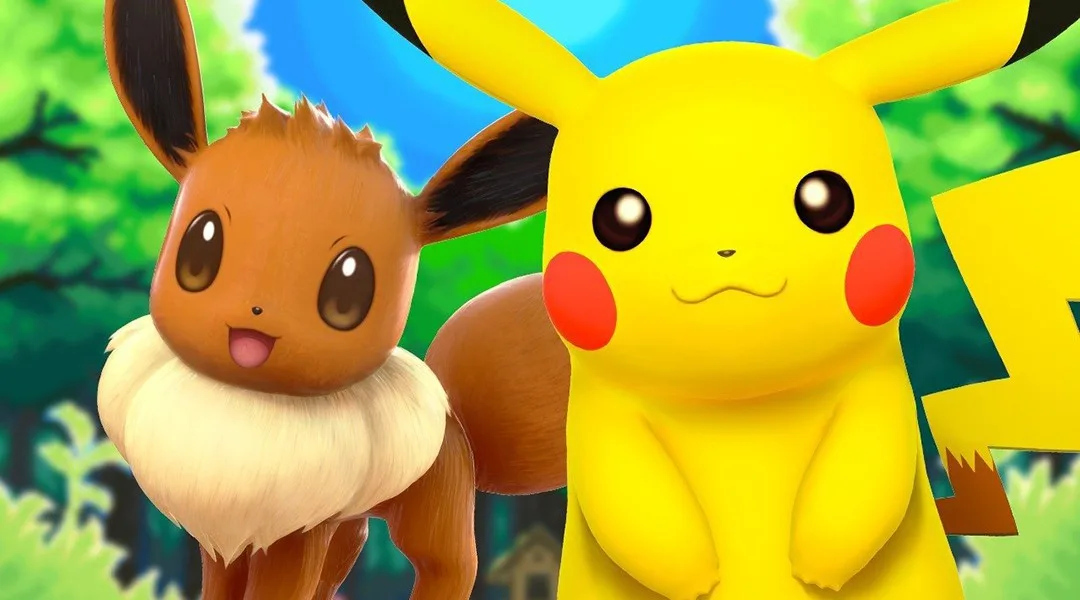
Learn how to connect your Poké Ball Plus as a Pokémon GO Plus device for Pokémon GO, and what features it unlocks for catching Pokémon and spinning PokéStops.
Hey there! So, you've got the Poké Ball Plus, right? It's not just for playing Pokémon Let's Go Pikachu and Eevee; it can actually double as a Pokémon GO Plus for your Pokémon GO app. Pretty neat, huh? Let's get it hooked up so you can catch 'em all on the go!
Walkthrough
- 1First things first, make sure your phone's Bluetooth is switched ON. You can usually find this in your phone's main settings.
- 2Now, open up Pokémon GO on your phone. Head into the Settings menu, and scroll down until you see the “Poké Ball Plus” option. Tap that.
- 3Grab your Poké Ball Plus. You'll need to make it discoverable. To do this, either click the analogue stick inwards or press the red button right at the top.
- 4Back in Pokémon GO, under the “Available Devices” section, you should see your Poké Ball Plus pop up. Quickly tap on it there.
- 5With a little luck, it'll connect! You'll know it's working because the Poké Ball Plus itself will give a little rumble, and the icon in Pokémon GO will become solid. You'll also see a solid Poké Ball icon appear in the top-right corner of your main Pokémon GO exploration screen.
- 6Once it's connected, it works just like a regular Pokémon GO Plus. When a Pokémon is nearby, the Poké Ball Plus will vibrate and light up. Just press one of its buttons to try and catch it. Just a heads-up, you can only use a standard red and white Poké Ball with it.
- 7It'll also buzz and light up more subtly when a Poké Stop is close. Press a button, and you'll spin it to get those sweet items!
- 8Pro Tip: If you've got a Pokémon chilling in your Poké Ball Plus from Let's Go, it'll automatically spin Poké Stops for you while you're out and about! How cool is that?
- 9To disconnect, just tap the solid Poké Ball icon in the top-right corner of the Pokémon GO screen and wait for it to turn grey. Or, you can just turn off Bluetooth on your phone. You can tap the greyed-out icon to reconnect later.
Tips
- Troubleshooting: If it's being stubborn and won't connect, double-check that your Pokémon GO app is updated to the very latest version. Also, make sure you're not using the Poké Ball Plus as a controller for Pokémon Let's Go at the exact same time – it can only do one job at once!
100% Human-Written. AI Fact-Checked. Community Verified. Learn how AntMag verifies content