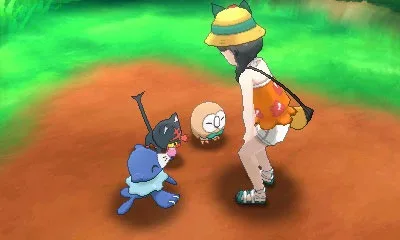
Learn how to take amazing photos in the Alola Photo Club in Pokémon Ultra Sun and Ultra Moon! Master Advanced Mode, Z-Moves, and exclusive backgrounds.
Alright, let's dive into the Alola Photo Club and get some awesome shots of your Pokémon! It might seem a little tricky at first, but once you get the hang of Advanced Mode, you'll be snapping pics like a pro. We'll go through all the tabs so you know exactly what to do.
Walkthrough
- 1Advanced Mode Basics: When you're in Advanced Mode, you'll see a bunch of tabs on the left side of your touch screen. The very top tab is your main hub – it's where you'll do most of your work.
- 2Pokemon Actions: In that top tab, there's a switch on the top left. This lets you choose if your Pokémon do actions they normally do in Pokémon Refresh, or if they do their battle actions. You can also pick your trainer's Z-Move dance using the button with the Z-move icon on the top right. You'll unlock more Z-moves as you collect more Z-Crystals.
- 3Positioning Your Pokémon: The second yellow tab is all about getting your Pokémon just right. You can move them around to where you want them. Just be careful not to cram them too close together, or they'll only be able to do little wiggles. Give them plenty of space if you want them to pull off some cool poses!
- 4Rotating Your Pokémon: The third green tab lets you rotate your Pokémon. Again, keep an eye on the space around them – the touch screen will show you how much room you've got.
- 5Camera Controls: The final purple tab gives you control over the camera. You can slide it left and right, up and down, and even rotate it to change the view. You can zoom in close or pull back far away, but remember how this affects the space your Pokémon have.
- 6Taking the Shot: Once everything looks perfect, head back to that top yellow tab and hit the play button. Your trainer will do their Z-Move dance. As soon as you see the perfect pose, pause it! Then, start telling your Pokémon what to do. Find that perfect moment and snap the picture!
- 7Multiple Shots & Saving: The camera will actually take six pictures in a row. This gives you six chances to get that perfect shot. After that, you can save the photos to your SD card. You can choose to save all of them, none of them, or just pick and choose a few.
- 8Exclusive Backgrounds: Here's a cool feature for fans of the older games! If the Pokémon you're posing with isn't from Alola, you can pick a special background that matches its home region. It’s a great way to revisit iconic spots from games like Red, Blue, and Emerald, or just to add some extra flair to your photos.
Exclusive Backgrounds Table:
| Region | Games | Background |
| Kanto | Red, Blue, Green, Yellow (Virtual Console), FireRed, LeafGreen | Indigo Plateau |
| Johto | Gold, Silver (Virtual Console), HeartGold, SoulSilver | Bell Tower |
| Hoenn | Ruby, Sapphire, Emerald, Omega Ruby, Alpha Sapphire | Seafloor Cavern |
| Sinnoh | Diamond, Pearl, Platinum | Spear Pillar |
| Unova | Black, White 2, Black 2, White 2 | Skyarrow Bridge |
| Kalos | X, Y | Lumiose City |
Tips
- Give your Pokémon plenty of space when positioning them so they can perform their best actions.
- Pay attention to the space indicators when rotating your Pokémon and adjusting the camera.
- Don't forget to pause the action at the perfect moment before telling your Pokémon to pose.
- Experiment with different Z-Move dances and camera angles to find unique shots.
- The exclusive backgrounds are a fantastic way to add nostalgia and context to your photos.
100% Human-Written. AI Fact-Checked. Community Verified. Learn how AntMag verifies content