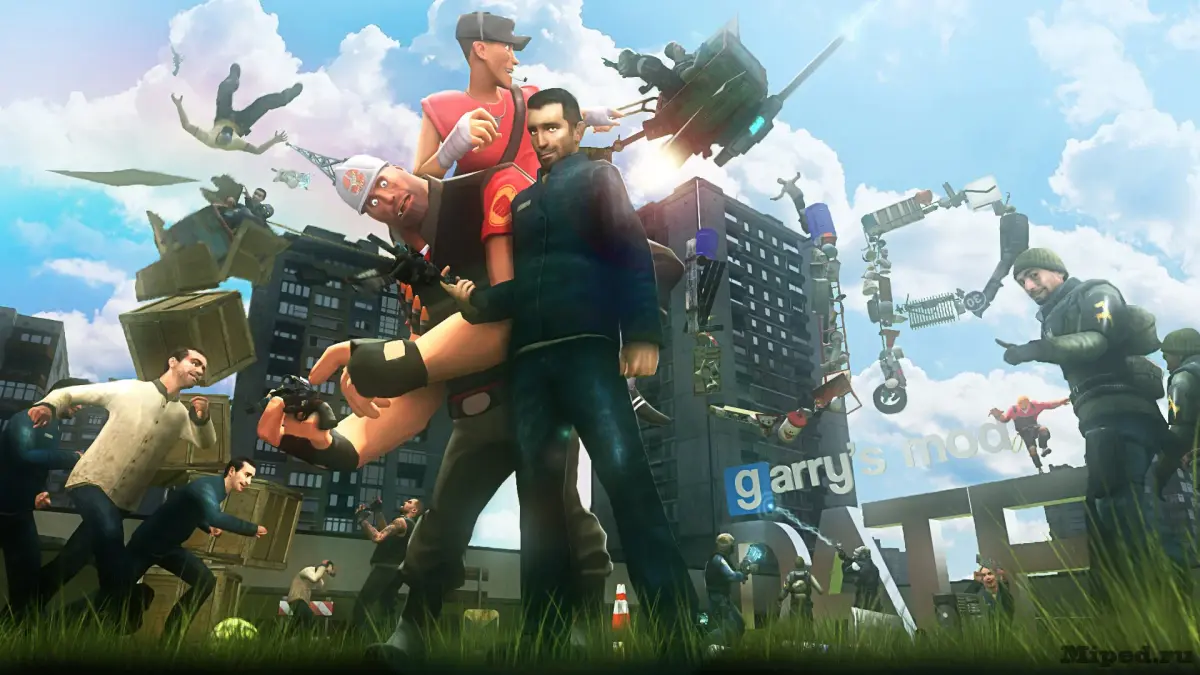
Optimize your Garry's Mod performance. Adjust graphics settings and in-game options to boost frame rate and visual fidelity for a smoother experience.
Optimizing your Garry's Mod experience is key to enjoying the vast creative possibilities without frustrating slowdowns. This detailed guide will walk you through the essential in-game and advanced settings to boost your frame rate and visual fidelity.
Accessing Graphics Settings
To begin, launch Garry's Mod and navigate to the main menu. From there, follow these steps:
- Click on "Options" in the bottom right corner of the main menu.
- Select the "Video" tab at the top of the options panel. This is where you'll find the primary graphics settings.
- For more granular control, click the "Advanced..." button within the Video tab.
Key Graphics Settings Explained
Here's a breakdown of the most impactful settings and recommended adjustments for various PC setups:
Resolution
- Location: Video Tab
- Impact: High. Lower resolutions significantly improve performance.
- Strategy: Match your monitor's native resolution for the sharpest image. If you're struggling with performance, try lowering it one step at a time (e.g., from 1920x1080 to 1600x900).
Display Mode
- Location: Video Tab
- Options: Fullscreen, Windowed, Borderless Windowed
- Strategy: "Fullscreen" generally offers the best performance as it gives Garry's Mod exclusive control over your display. "Borderless Windowed" is convenient for alt-tabbing but can sometimes introduce minor performance overhead.
Model Detail
- Location: Advanced Video Options
- Impact: Medium. Affects the complexity of character and prop models.
- Strategy: Set to "High" or "Medium" for most systems. If you're experiencing stuttering in crowded scenes, try "Low."
Texture Detail
- Location: Advanced Video Options
- Impact: High. Determines the resolution of textures on surfaces.
- Strategy: "High" or "Medium" is ideal. On systems with limited VRAM (video memory), "Low" can provide a significant boost.
Shader Detail
- Location: Advanced Video Options
- Impact: High. Controls the complexity of lighting, reflections, and other visual effects.
- Strategy: This is a major performance hog. Start with "High" and reduce to "Medium" or "Low" if performance is an issue. "Low" will disable many advanced lighting effects.
Water Detail
- Location: Advanced Video Options
- Impact: Medium. Affects the quality of water reflections and refractions.
- Strategy: "Reflect All" is beautiful but demanding. "Reflect World" is a good compromise. "Simple Reflections" or "Fast Reflections" will improve performance at the cost of visual fidelity.
Shadow Detail
- Location: Advanced Video Options
- Impact: High. Determines the resolution and quality of shadows.
- Strategy: Shadows are very performance-intensive. "High" or "Medium" is good for powerful systems. "Low" or even "Very Low" will significantly improve FPS, especially in maps with many light sources.
Anti-Aliasing Mode
- Location: Advanced Video Options
- Impact: High. Smooths jagged edges on objects.
- Strategy: MSAA (Multi-Sample Anti-Aliasing) is the most common. 2x or 4x MSAA offers a good balance. If performance is critical, set this to "None" or use FXAA if available through your graphics card control panel.
Filtering Mode (Anisotropic Filtering)
- Location: Advanced Video Options
- Impact: Medium. Improves texture clarity at oblique angles.
- Strategy: 8x or 16x Anisotropic Filtering has a relatively low performance cost for a noticeable visual improvement. If you're desperate for frames, try 4x or 2x.
Advanced Console Commands (Developer Console)
For further fine-tuning, you can use the developer console. To enable it:
- Go to "Options" -> "Keyboard" tab.
- Click "Advanced..."
- Check "Enable developer console (~)."
- Press the tilde (~) key during gameplay to open the console.
Here are some useful commands:
cl_showfps 1: Displays your current frame rate. Usecl_showfps 0to disable.mat_picmip [value]: Controls texture quality. Lower values (e.g.,mat_picmip 1or2) reduce texture quality for better performance. Default is 0.r_shadowrendertotexture 0: Disables some dynamic shadows, potentially boosting FPS.r_waterforceexpensive 0: Reduces water quality.r_waterforcereflectentities 0: Disables reflections of entities in water.gmod_mcore_test 1: Attempts to enable multi-core rendering. This can sometimes improve performance on modern CPUs, but can also cause instability for some users. Restart your game after changing this.
External Optimization Tips
- Update Graphics Drivers: Always keep your graphics card drivers (NVIDIA, AMD, Intel) up to date. These often include performance optimizations for various games.
- Close Background Applications: Ensure no unnecessary programs are running in the background, consuming CPU or RAM.
- Verify Game Files: If you encounter persistent issues, right-click Garry's Mod in Steam, go to "Properties" -> "Local Files" -> "Verify integrity of game files..." This can fix corrupted installations.
- Disable Unused Addons: Many Garry's Mod addons can be resource-intensive. Disable any addons you aren't actively using through the "Addons" section in the main menu.
By systematically adjusting these settings, you can find the perfect balance between visual quality and smooth performance, ensuring your Garry's Mod sandbox experience is as enjoyable as possible.
100% Human-Written. AI Fact-Checked. Community Verified. Learn how AntMag verifies content