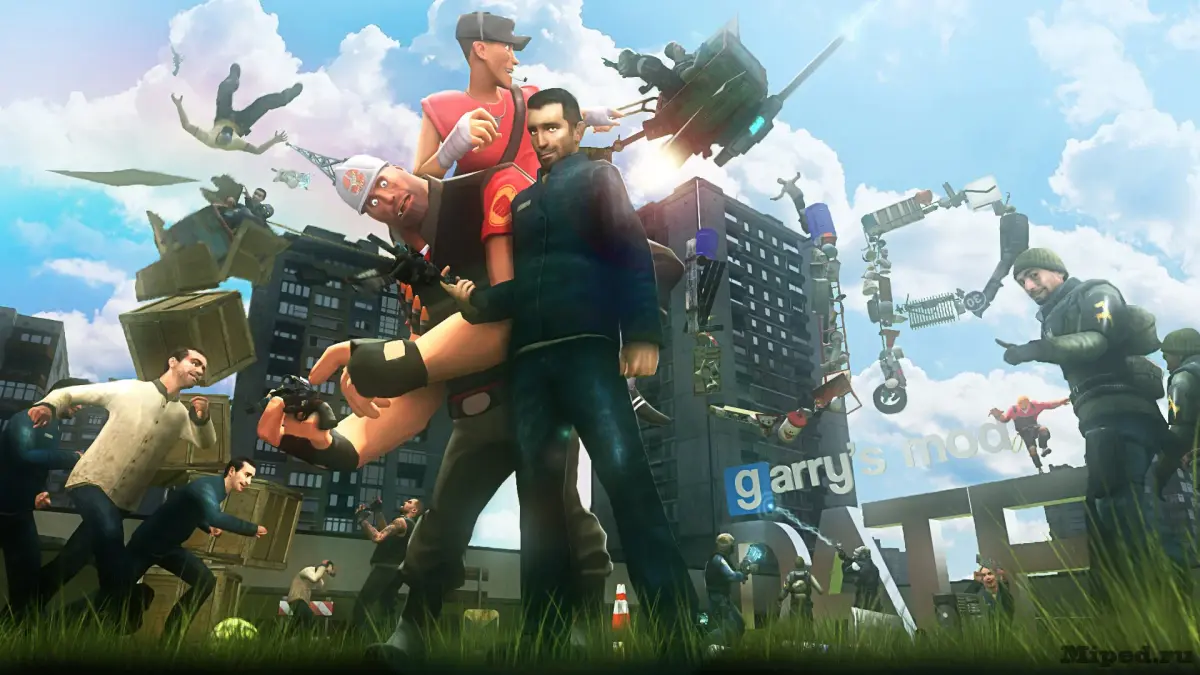
Learn to use the camera tool and screenshots in Garry's Mod. Capture stunning creations and gameplay moments with effective framing and perspective techniques.
Capturing the moments and creations within Garry's Mod is an essential part of the experience, whether for sharing impressive builds, documenting gameplay, or creating machinima. The in-game camera tool and the screenshot function are your primary means of doing so, allowing you to frame shots, adjust perspectives, and preserve your virtual adventures.
The camera tool in Garry's Mod is more than just a way to take pictures; it's a powerful instrument for composition and storytelling. By understanding its various functions, you can create professional-looking screenshots and cinematic footage that truly showcase your work and the dynamic nature of the Garry's Mod sandbox. Mastering these tools enhances both your creative output and your ability to share it with others.
Using the Camera Tool:
- Accessing the Camera: The camera tool is typically found in the "Utilities" tab of the Spawnmenu (Q menu).
- Placing and Controlling the Camera: You can place a camera entity in the world and then "possess" it to control its movement and view.
- Camera Properties: The camera entity has properties that allow you to adjust its focal length, field of view, and depth of field, enabling cinematic effects.
- Camera Modes: Different camera modes might be available, offering various perspectives or functionalities.
Taking Screenshots:
- Default Keybind: The default key for taking screenshots in Garry's Mod (and most Steam games) is F12.
- Steam Overlay: Screenshots taken with F12 are saved through Steam and can be accessed via the Steam client (View > Screenshots).
- In-Game Console Commands: Advanced users can utilize console commands like `screenshot` for more control over resolution and naming.
- High-Quality Screenshots: For the best quality, consider disabling motion blur, adjusting graphical settings, and using the camera tool's depth of field features.
- Composition: Apply principles of photography, such as the rule of thirds, leading lines, and framing, to create visually appealing images.
- Lighting: Pay attention to in-game lighting. Use the camera tool to position yourself to take advantage of dramatic lighting or create specific moods.
- Depth of Field: Utilize the camera's depth of field to blur the background and focus attention on your subject, similar to professional photography.
- Action Shots: Capture dynamic moments by timing your screenshots during explosions, character interactions, or vehicle movements.
Whether you're documenting a complex contraption or capturing a humorous moment, mastering the camera and screenshot tools will significantly enhance your ability to share your Garry's Mod experiences.
100% Human-Written. AI Fact-Checked. Community Verified. Learn how AntMag verifies content