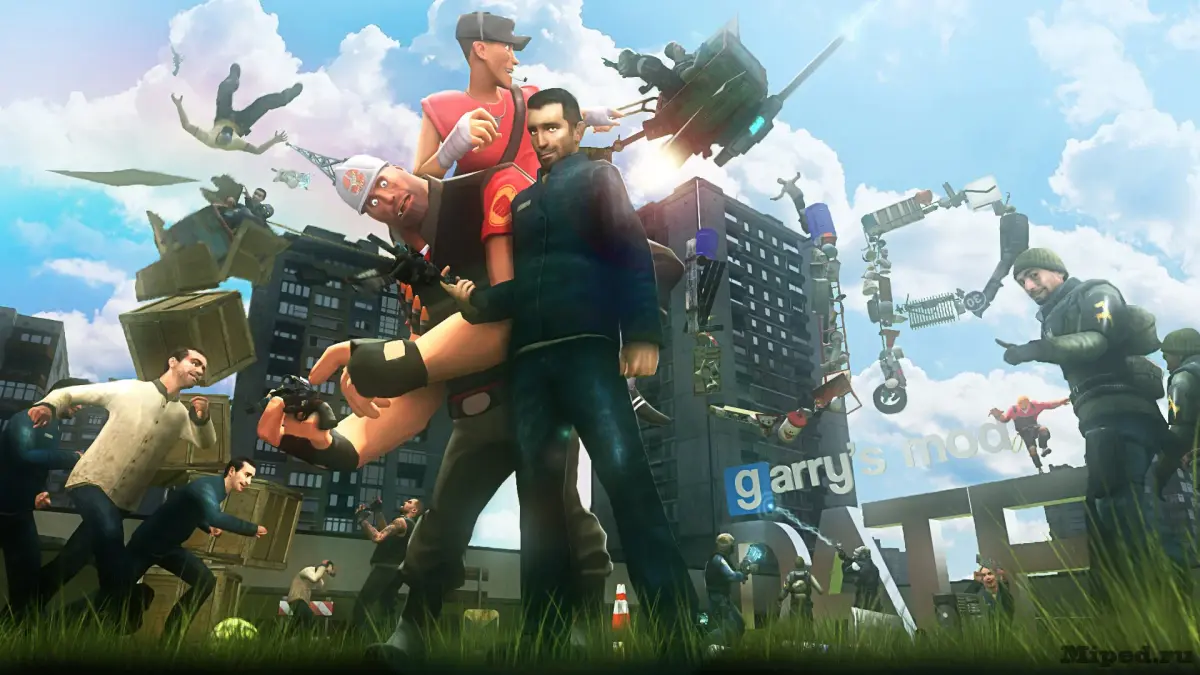
Learn to create and upload your own Garry's Mod addons for the Steam Workshop. Prepare custom models, Lua scripts, and maps for the community.
The Garry's Mod Steam Workshop is not just a place to download content; it's also a platform for creators to share their own creations. Whether you've designed a unique playermodel, coded a new gamemode, or built an intricate contraption, the Workshop provides the tools to upload and distribute your work to the global GMod community. This section outlines the fundamental aspects of creating and preparing your addon for the Workshop.
Creating and sharing your own addons is a core part of the Garry's Mod experience. The Steam Workshop is the primary platform for this. Here's what you need to know:
1. What Can You Create?
The possibilities are vast:
- Models: Custom 3D models (props, characters, vehicles).
- Textures: Custom materials and skins.
- Scripts: Lua scripts for new weapons (SWEPs), entities, gamemodes, or utility functions.
- Maps: Entirely new environments for players to explore.
- Sounds: Custom sound effects.
- Animations: Custom animations for models.
2. Essential Tools for Creation
- Garry's Mod: The base game is required for testing.
- Text Editor/IDE: For writing Lua scripts (e.g., Visual Studio Code, Sublime Text, Notepad++).
- 3D Modeling Software: For creating custom models (e.g., Blender, Maya, 3ds Max).
- Image Editing Software: For creating and editing textures (e.g., Photoshop, GIMP, Paint.NET).
- VTFEdit: For converting image files into Source Engine texture formats (.vtf and .vmt).
3. Understanding Addon Structure
Addons are organized in specific folder structures within the `garrysmod/addons/` directory. A typical addon folder contains subfolders like `lua/`, `materials/`, `models/`, `sound/`, etc., depending on the type of content.
Example Structure:
MyCustomAddon/
├── lua/
│ └── autorun/
│ └── server/
│ └── my_script.lua
├── materials/
│ └── my_textures/
│ └── my_texture.vmt
│ └── my_texture.vtf
└── models/
 └── my_model.mdl
4. Preparing for Upload
- Testing: Thoroughly test your addon in-game to ensure it works correctly and doesn't cause errors or crashes.
- Dependencies: If your addon requires other addons, clearly list them in the description.
- ReadMe: Include a `readme.txt` file with instructions, credits, and usage information.
5. Uploading to the Steam Workshop
Garry's Mod has a built-in tool for this:
- Launch Garry's Mod.
- Go to the 'Addons' menu.
- Click 'Manage Addons'.
- Select your addon folder and click 'Upload to Workshop'.
- This opens the Steam Workshop Uploader, where you'll set the addon's name, description, thumbnail, visibility, and tags.
- Click 'Publish' to upload your addon.
6. Best Practices
- Clear Descriptions: Provide detailed information about your addon.
- Good Thumbnails: Use an appealing image to attract users.
- Respond to Feedback: Engage with comments and address issues reported by users.
- Regular Updates: Keep your addon updated with game changes and bug fixes.
Creating and sharing addons is a rewarding way to contribute to the Garry's Mod community and develop your skills.
100% Human-Written. AI Fact-Checked. Community Verified. Learn how AntMag verifies content