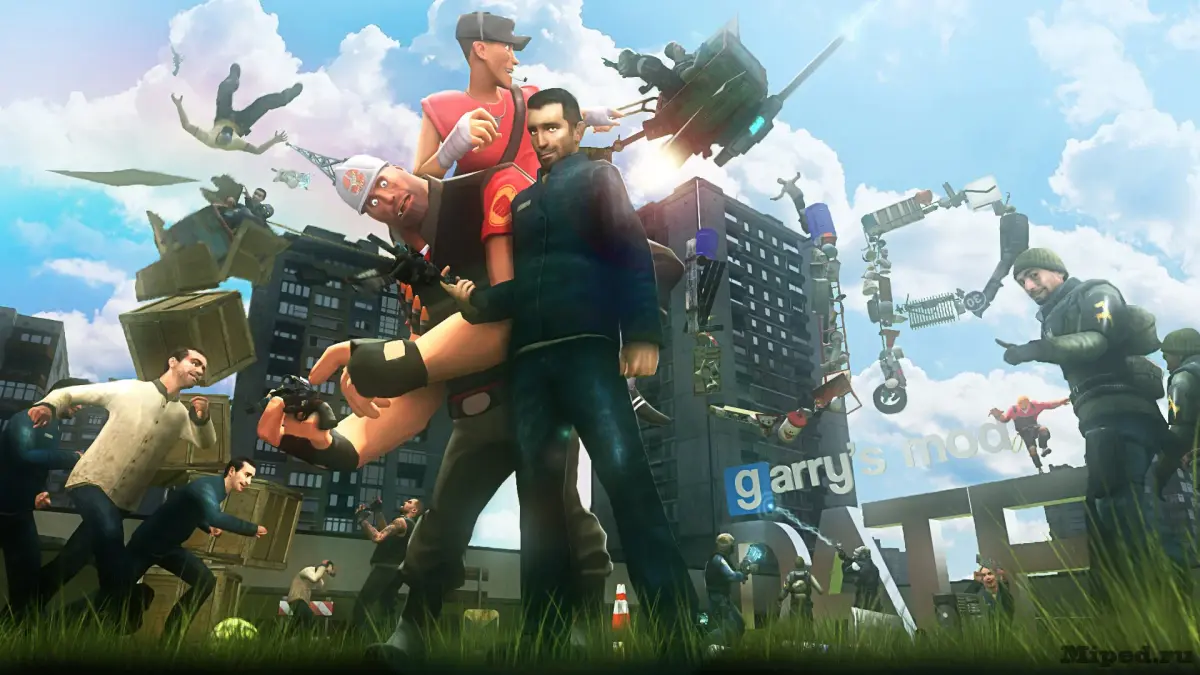
Master the Garry's Mod Camera Tool for stunning screenshots and smooth videos. Learn placement, control, FOV, depth of field, and recording techniques.
3.9. Using the Camera Tool for Screenshots and Videos
Capturing your Garry's Mod creations and epic moments is essential for sharing with the community. The Camera Tool is your primary instrument for this, allowing you to take high-quality screenshots and record smooth video footage. Mastering its features will elevate your content creation game.
The Camera Tool in Garry's Mod is more than just a way to snap pictures; it's a versatile device for cinematic storytelling and preserving your most impressive builds and gameplay moments. Whether you're aiming for stunning screenshots to share on forums or dynamic video clips for YouTube, understanding the Camera Tool's capabilities is key to producing professional-looking results.
Accessing and Using the Camera Tool:
- Tool Gun: Select the Camera Tool from the Tool Gun's menu.
- Placement: Left-click to place the camera. It will remain stationary.
- Control: Right-click on the placed camera to enter its control panel.
The control panel offers various settings to fine-tune your shots. You can adjust the camera's position, rotation, and even its field of view. For screenshots, you'll want to frame your subject perfectly. For videos, smooth camera movements are crucial.
Key Camera Tool Features:
- Position and Rotation: Manually adjust the camera's placement and angle for the perfect shot.
- Field of View (FOV): Control the width of the camera's perspective. A wider FOV can capture more of the scene, while a narrower one can create a more focused, cinematic look.
- Depth of Field: Simulate the focus of a real camera, blurring the background to emphasize your subject.
- Recording: The Camera Tool can record video directly. Use the "Record" button in the control panel.
- Playback: Recorded videos can be played back within Garry's Mod or exported as .dem files for external editing.
- Lighting: Use the Lamp Tool to illuminate your subject.
- Composition: Employ the rule of thirds and leading lines for visually appealing frames.
- Camera Angles: Experiment with low angles, high angles, and Dutch tilts.
- Post-Processing: Consider using external software for further image or video editing to enhance your creations.
By practicing with these settings and techniques, you'll be able to capture your Garry's Mod experiences in a way that truly showcases your creativity and skill.
100% Human-Written. AI Fact-Checked. Community Verified. Learn how AntMag verifies content