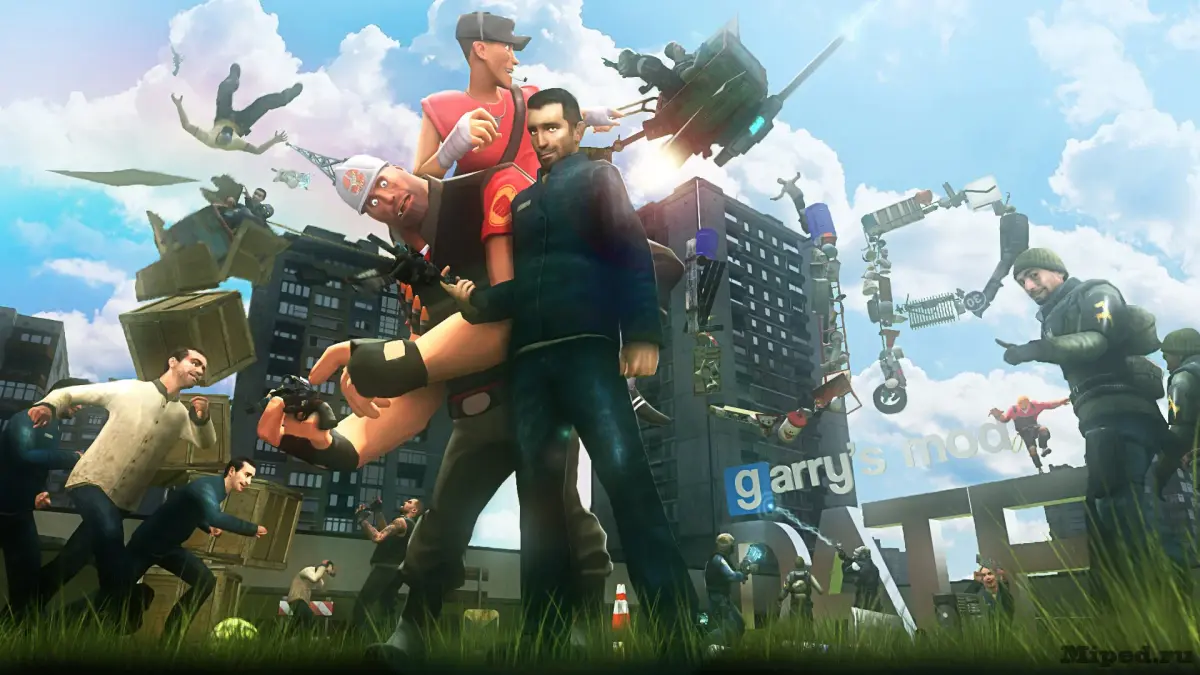
Manually install Garry's Mod addons. Learn the correct folder structure, how to find your game directory, and troubleshoot common installation issues.
While the Steam Workshop is the primary method for acquiring Garry's Mod addons, sometimes you might encounter older or manually distributed addons that require manual installation. This process involves placing addon files directly into your Garry's Mod game directory, ensuring they are correctly structured for the game to recognize them.
Understanding Addon Structure
Most Garry's Mod addons follow a standard directory structure. The core of an addon is typically contained within a folder named after the addon itself. Inside this folder, you'll find subfolders that dictate where Garry's Mod should place the addon's files:
- `lua/`: Contains Lua scripts that define weapon behavior, gamemode logic, entity functions, etc.
- `models/`: Holds 3D model files (e.g., `.mdl` for props, weapons, NPCs).
- `materials/`: Contains texture files (e.g., `.vmt`, `.vtf`) used by models.
- `sound/`: Stores audio files (e.g., `.wav`, `.mp3`).
- `maps/`: For custom map files (`.bsp`).
- `gamemodes/`: Contains files for custom gamemodes.
- `addons/`: This is the main directory where all addon folders are placed.
Locating Your Garry's Mod Directory
Before you can install addons manually, you need to find your Garry's Mod installation folder. The default location on Windows is usually:
C:\Program Files (x86)\Steam\steamapps\common\GarrysMod\garrysmod\
If you have Steam installed on a different drive or in a custom location, navigate to that path instead. The key folder is `garrysmod`.
Manual Installation Steps
Once you have downloaded an addon (typically as a `.zip` or `.rar` file), follow these steps:
- Extract the Addon: Use a program like 7-Zip or WinRAR to extract the contents of the addon archive. You should end up with a main folder containing the addon's files and subfolders (e.g., `my_awesome_addon/lua/`, `my_awesome_addon/models/`).
- Locate the `addons` Folder: Navigate to your Garry's Mod installation directory and find the `garrysmod/addons/` folder.
- Copy the Addon Folder: Copy the entire main addon folder (e.g., `my_awesome_addon`) into the `garrysmod/addons/` directory.
- Restart Garry's Mod: Close and relaunch Garry's Mod. The game should now detect the newly added files.
Troubleshooting Manual Installations
- Incorrect Folder Structure: The most common issue is placing the addon files in the wrong location or having an incorrect folder hierarchy. Ensure the addon's main folder (containing `lua`, `models`, etc.) is directly inside the `garrysmod/addons/` folder.
- Missing Dependencies: Some addons require other addons to function. Check the addon's description for any dependencies.
- File Conflicts: Occasionally, manually installed addons might conflict with existing ones. If issues arise, try removing recently added addons one by one to identify the culprit.
- Corrupted Files: Ensure the addon archive was downloaded completely and is not corrupted. Try re-downloading it.
- Server-Side vs. Client-Side: Some addons are server-side only (affecting gameplay on servers), while others are client-side (affecting your local game). Manual installation typically applies to both, but be aware of the addon's intended purpose.
Legacy Addons
Older addons, especially those predating the Steam Workshop, are often distributed manually. Following these steps will allow you to integrate them into your Garry's Mod experience, expanding your content library beyond what's available on the Workshop.
By understanding the structure of Garry's Mod addons and following these manual installation steps, you can effectively add a wide range of custom content to your game.
100% Human-Written. AI Fact-Checked. Community Verified. Learn how AntMag verifies content